An organization lets multiple people share boards and collaborate on the same issues. Setting one up takes under two minutes.
Step 1 — Create the organization
From the organization selection screen (shown right after login, or reachable anytime from the dropdown at the top of the sidebar), tap + Create organization.
Fill in:
- Name — your company, team, or project name
- Slug — a URL-safe identifier, auto-suggested from the name
- Color — used in the sidebar and the organization switcher
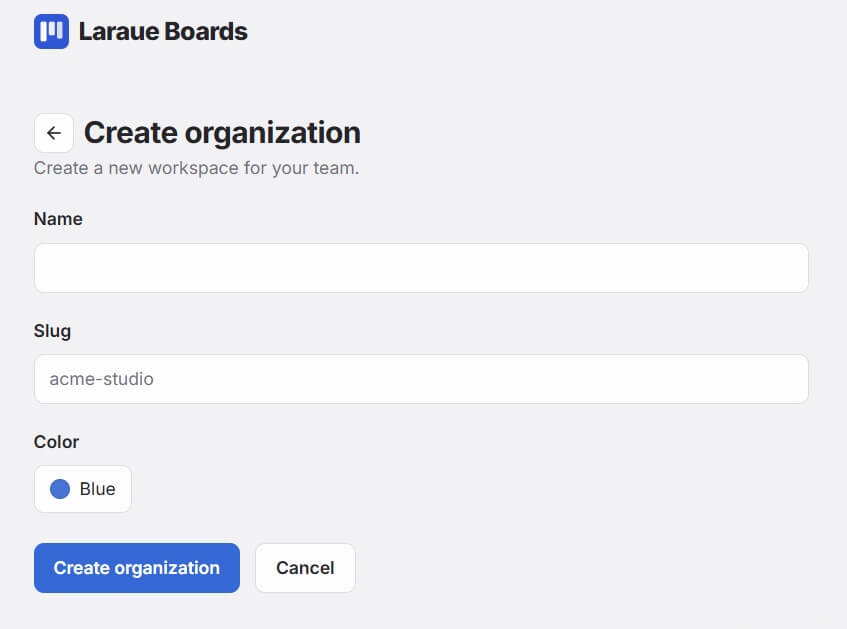
Tap Create organization. You are immediately set as the Owner.
The slug you enter isn't used as-is: a random postfix is appended to it to form the organization's actual key, so it can't be guessed.
Step 2 — Enter the organization
Tap the organization on the selection screen, or pick it from the sidebar dropdown. Any boards or spaces you create here are visible to members you invite, according to the permissions you give them.
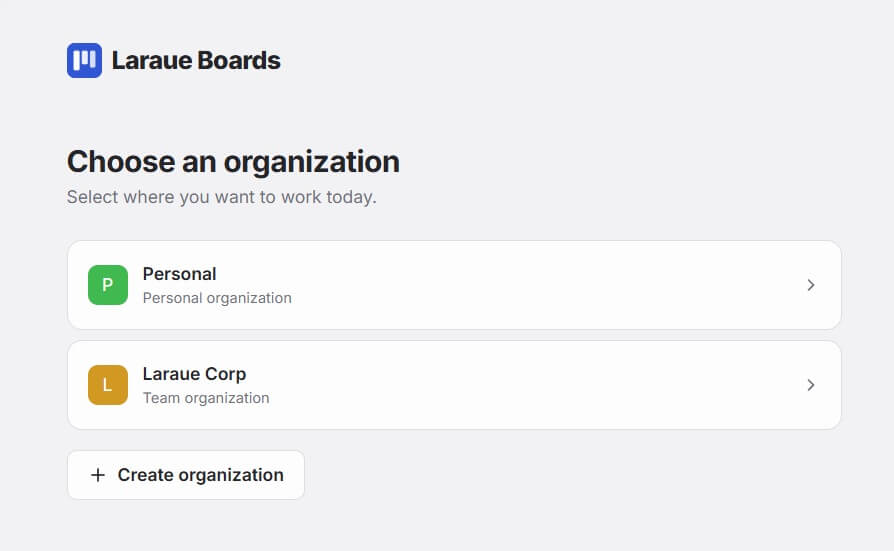
Step 3 — Share the invite link
Open Settings → Permissions in the sidebar. The invite link is already there, generated when you created the organization — there's nothing to set up.
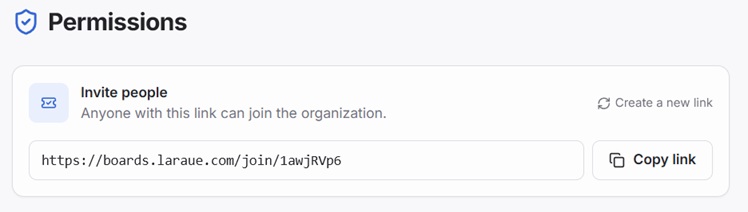
Copy the link and send it to your teammate in Telegram, or however you prefer. When they open it and accept, they join the organization.
Step 4 — Configure their access
A new member starts with no permissions at all — they can't see anything in the organization until you grant access. Open Settings → Permissions, find them in the member list, and tap through to their permissions page to set up what they can do. See Permissions management for the full breakdown.
Managing the invite link
The invite link does not expire. If you need to invalidate it — for example if you shared it publicly by mistake — use Create a new link. This requires the Manage members and permissions administrative permission. A new link is created and the old one stops working; members who already joined are not affected.