An Epic is a kanban board — a named collection of status columns that group related issues together. In Laraue Boards the terms "board" and "epic" are used interchangeably. An epic works with an internal id only — it does not have its own key. Issue keys come from the space the epic belongs to, not from the epic itself.
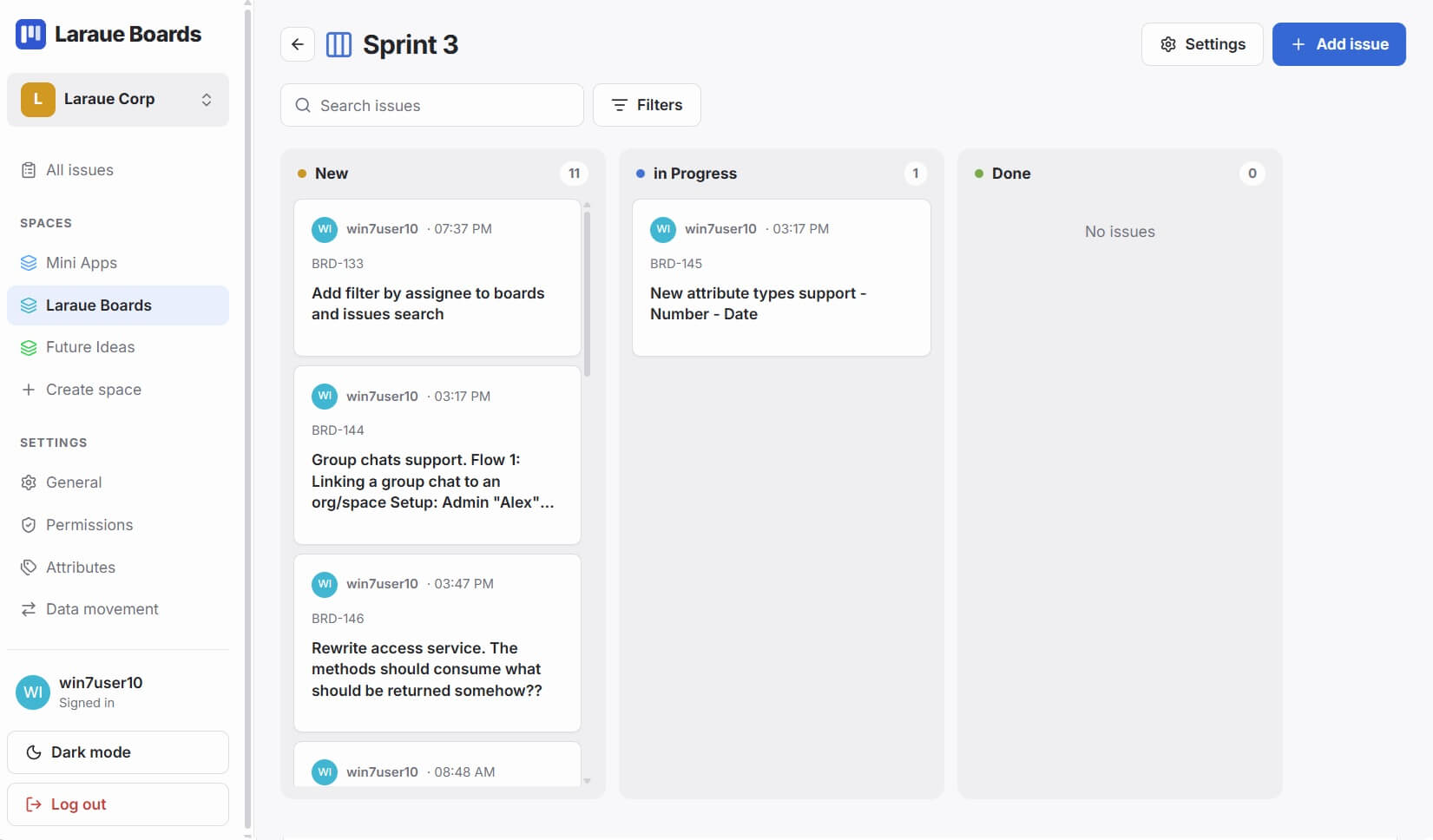
Creating an epic
Select the space you want the board in, then tap Create board in the top right corner. Fill in:
- Name — the display name, e.g. "Sprint 1" or "Bug Fixes"
- Color — used for the dot in the navigation tabs
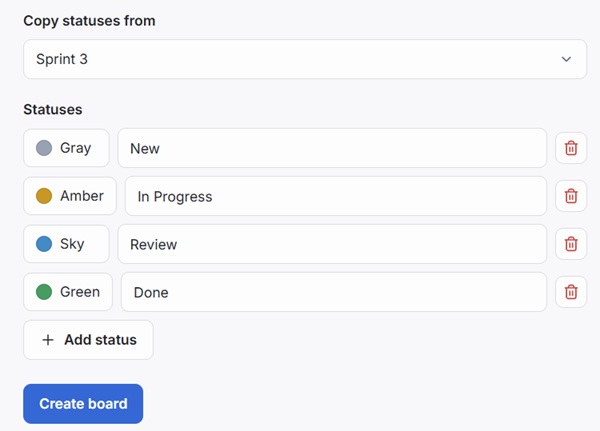
Every new epic starts with a single column, New. You can add and configure the rest afterwards, as described below — or copy the entire status set from one of your existing boards right away, so you don't have to rebuild a familiar workflow column by column.
Copy statuses from another epic — on the board creation form, pick a source epic and its status columns are copied over as-is, in the same order and with the same colors. You can still edit, add, or remove columns afterwards; copying only sets the starting point.
Status columns
Each column in a board represents a status. Issues move from left to right as work progresses. All column management — adding, editing, deleting, and reordering — happens in the board's settings, where statuses are shown as a list of rows:
- Add a column — add a new status row
- Edit a column — rename a status or change its color
- Delete a column — issues in the deleted column are permanently deleted along with it. We're planning to add a step where you choose a new status for those issues before the column is deleted, instead of losing them.
- Reorder columns — drag the status rows into the order you want
There is no limit on the number of columns. A simple workflow might have three; a more complex one might have seven or eight.
Sorting and filtering issues
Each board has controls in the header for sorting and filtering:
Sorting — right now, cards are ordered manually: drag a card to reorder it within a column. Sorting by other criteria, like time or sender, is being worked on and will be added soon.
Filter by attribute — if you have added custom attributes to the board, filter chips appear in the filter bar. Tap a chip to show only issues with that attribute value.
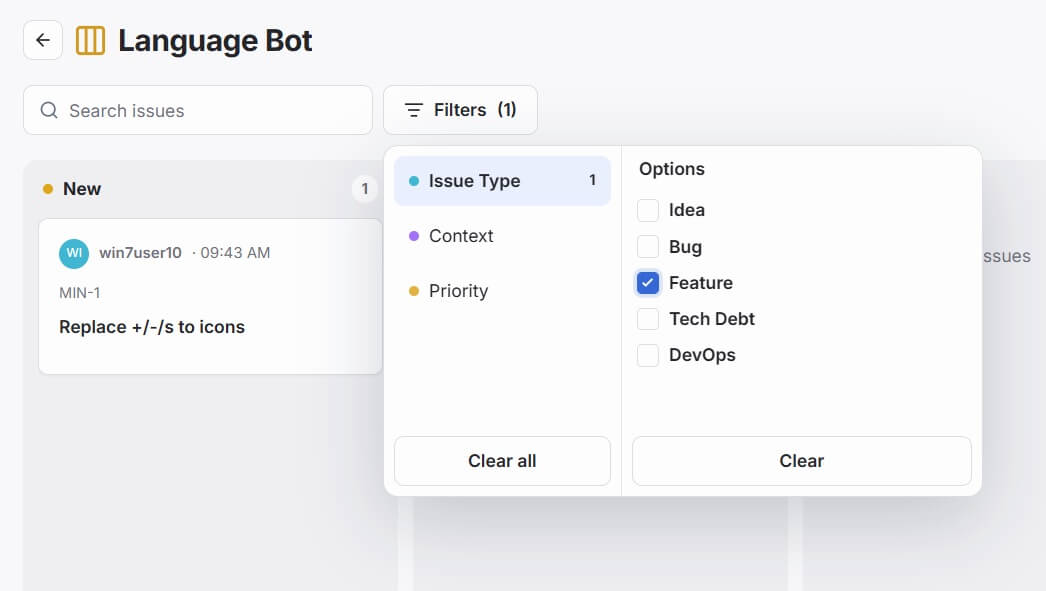
Board search — tap the search icon in the board header. Type any text and the board instantly shows only matching cards across all columns. The search clears when you navigate away.
Drag and drop
Cards can be dragged between columns and reordered within a column by dragging. Managing the columns themselves — adding, editing, deleting, and reordering — is done separately, in the board's settings.
On touch screens, press and hold a card for a moment before dragging to distinguish a drag from a scroll.
Moving issues between the Backlog and a board
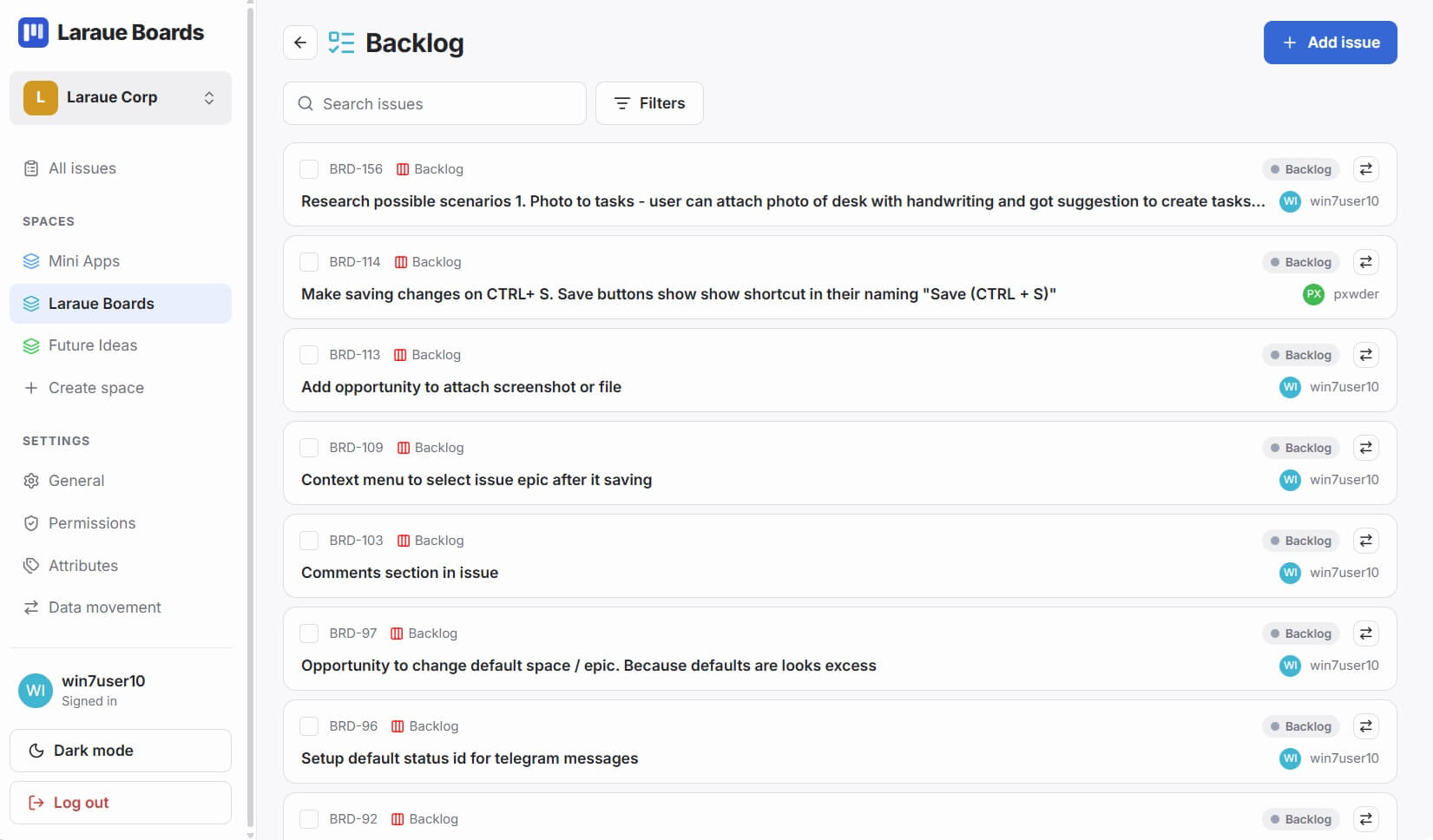
Every space has its own Backlog — the default board new issues from the bot land on, unless the chat is linked to a different epic. From the Backlog, open an issue and assign it to any other epic in the same space. You can also move an issue back to the Backlog from its detail view at any time.
The Backlog
Every space's Backlog is just a list of the issues currently on its default board — the same way any other board shows its issues, just without columns. New issues from the bot land here first, unless the chat is linked to a specific epic. When there is nothing in it, the Backlog is simply empty; there is no separate summary view.
Deleting an epic
Open the board and tap the settings icon in the top right corner. The same menu also lets you edit the board; choose Delete board to remove it. All issues on the board are permanently deleted along with it. This cannot be undone.
We're planning to add a step where you can choose a new epic — or a new space — for the issues before deleting one, instead of losing them. Until then, move issues out yourself before deleting a board that still has issues you want to keep.