This guide will help you get familiar with Laraue Boards. There's nothing to set up beforehand — your first board is already waiting for you the moment you log in.
Step 1 — Log in to your account
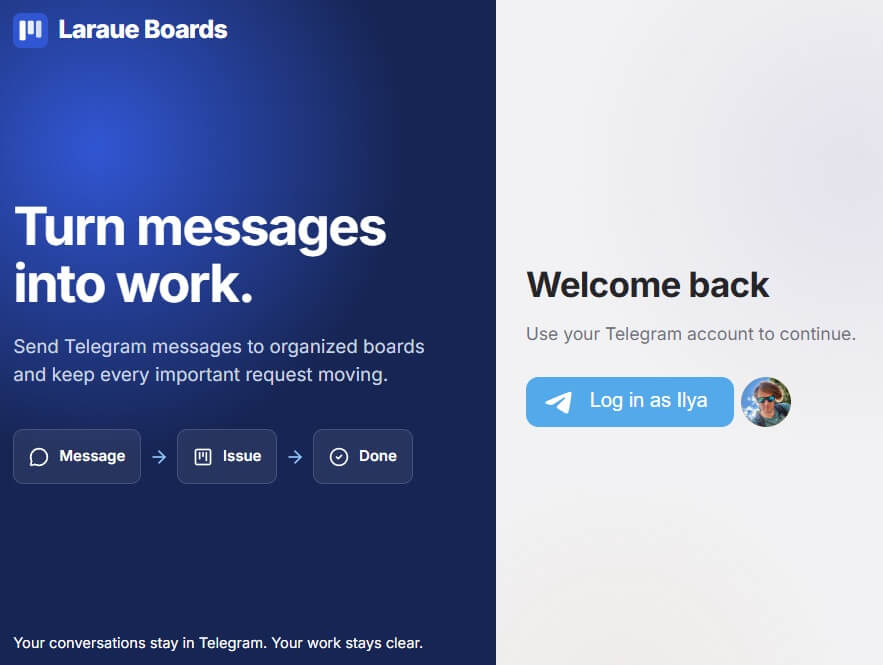
As a Telegram Mini App — open @msgboard_bot in Telegram and tap Start. Once you have a chat with the bot, a launch button for the Mini App appears right next to it — tap it, and you're inside your boards, already logged in with your Telegram account.

In the browser — visit boards.laraue.com and tap Log in with Telegram.
For more on what data login uses, and on switching between accounts and organizations, see Authorization.
Step 2 — Add your first issue
There are two ways to do this, and neither requires any setup first.
From Telegram — go back to your chat with the bot and send it anything: a thought, a link, a task. The bot saves it to the Backlog of your default space and reacts with 👍. The destination can be changed — with chat linking.
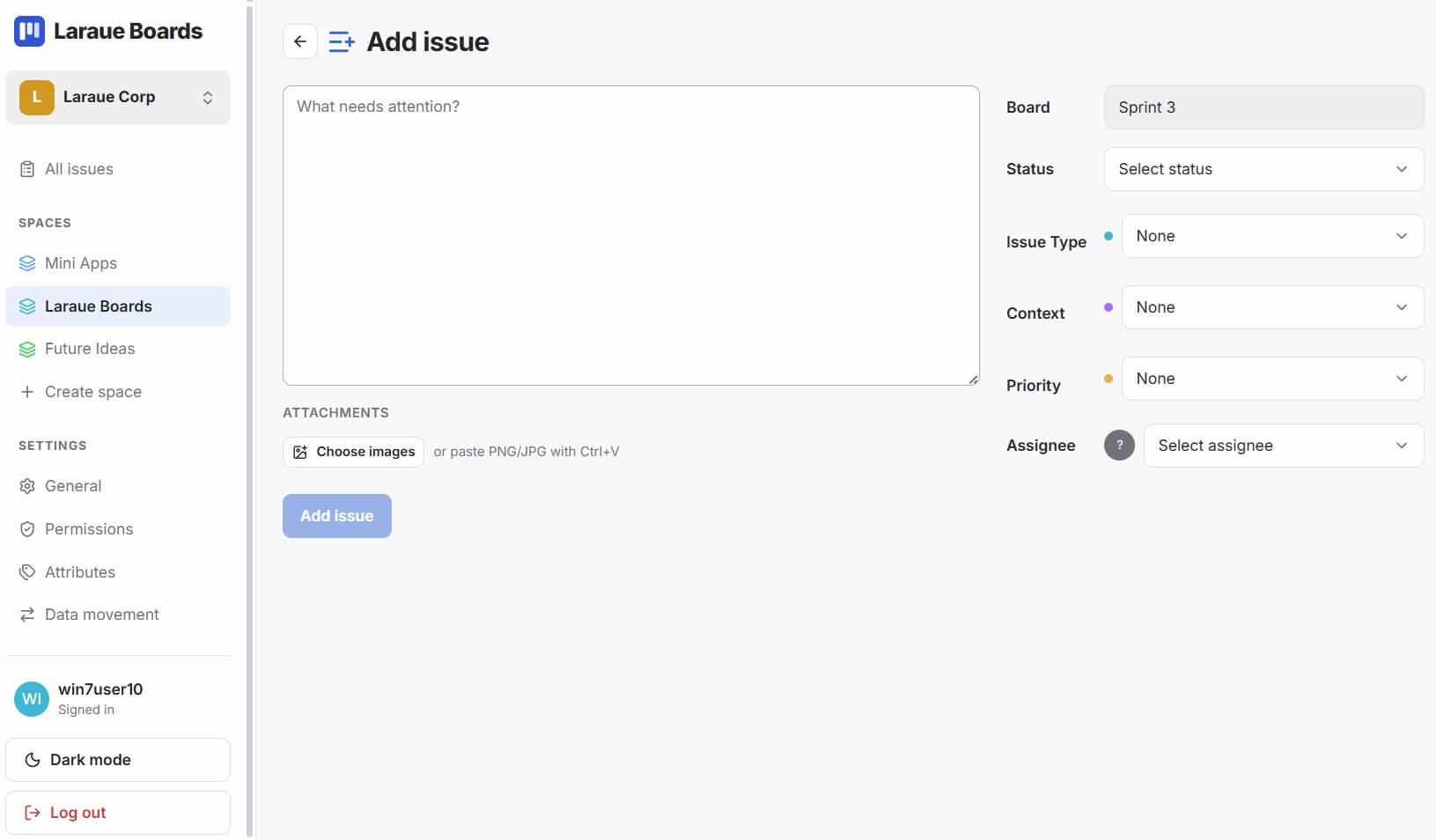
In the app — if you'd rather not send anything to the bot at all, that's fine too. Telegram can be just your login method. Tap + Add issue — it's available from anywhere in the app, not just from inside a board. Open it from a board and the space and board are already filled in for you; open it from the organization level and every field starts empty, so you choose the space, board, and status yourself.
Step 3 — Move it
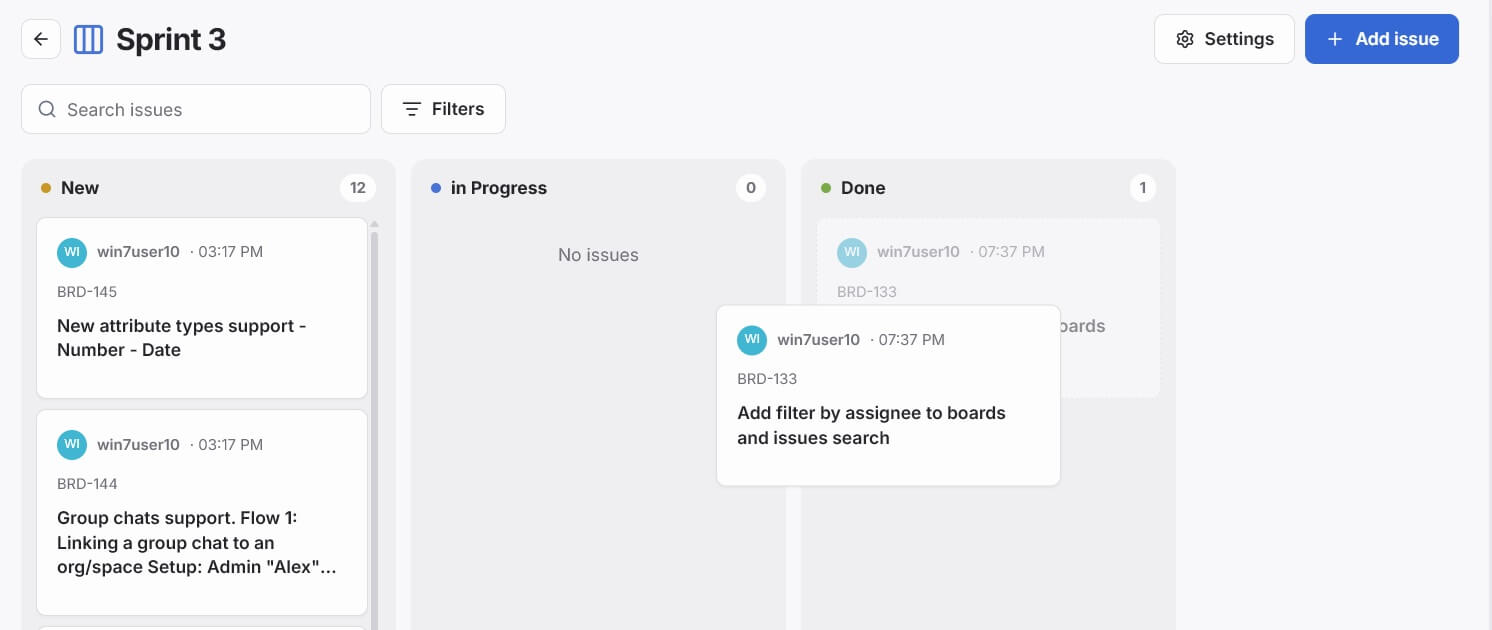
Drag the issue card from one column to another to change its status. On mobile, press and hold the card briefly before dragging — a slight delay prevents accidental moves while scrolling.
If you want to put the issue in a different space or on a different board, open its details — you can do this from the Backlog, the list of all the organization's issues, or right from a board — and change the space or board there.
Step 4 — Find it again
Every issue gets a key, like WRK-1 — the first three letters come from your space's name. Mention this key in Telegram and anyone with access knows exactly what you mean. There's also a link icon right next to the key on the issue — tap it to copy a direct link, if you'd rather share that than just the key. You can also use the search icon in the board header to filter by text.
What's next
- Want more than one board? Create a new one whenever a project needs its own space to live in.
- Add custom attributes to issues — Custom attributes
- Group your boards into spaces — Spaces
- Invite a teammate — Organizations