Save mode is the last step of linking a chat, and it decides when a message in that chat turns into an issue: automatically, or only when someone asks for it.
Every message (auto mode)
Every message sent in the chat becomes an issue immediately. If the sender edits their message afterward, the issue updates to match — auto mode keeps the issue in sync with the live message.
This is a good choice for a solo or personal chat — for example, your own "notes to self" chat linked to a specific project, where any message should become a card.
Because saving happens silently (a reaction confirms it, not a reply), reply to a message with /info (below) if you want to grab the card's link.
Only via /save (manual mode)
Nothing is saved automatically. Messages are tracked so they can be saved, but no issue exists until someone acts on one.
To save a message, reply to it with /save, optionally adding a note:
/save follow up next sprint
The note becomes the top of the issue's content, with the original message's text below a --- divider if both are present.
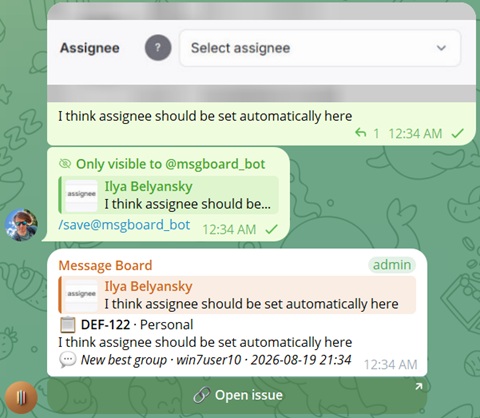
This is the right choice for a busy group chat where only some messages should become cards.
Replying to any message in a photo/video album saves the whole album as one issue — content and caption come from the album's first message, and every attachment is attached to the issue.
Running /save again on a message that's already saved triggers a re-sync and returns the same card's link. In manual mode, this is the correct way to update the card on the board if the message in the chat was updated.
/aisave — save with an AI-cleaned title and description
/aisave saves a message the same way /save does — reply to it, with an optional note — but runs the content through AI first, instead of storing it as-is. The result is a structured card with two parts:
- Title — a short, focused summary of what the message is about, used as the issue's heading
- Description — the rest rewritten: grammar fixed, repeated points collapsed, and rambling text organized into clear bullet points
/aisave Fix using incorrect endpoint while choosing user in filter in organization history
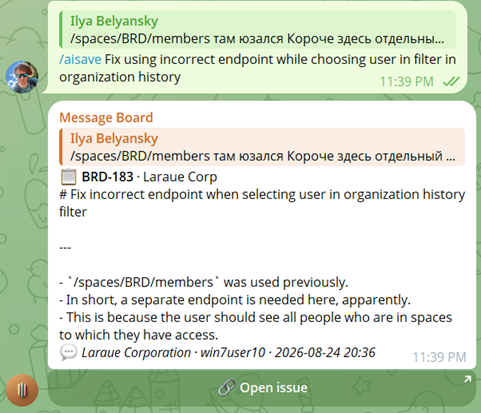
Reach for it on messy, stream-of-consciousness messages — a rant in a group chat, a half-formed bug report — where a readable card is more useful than a copy-paste of the original text.
Everything else works the same as /save: it handles albums the same way, running it again on an already-saved message re-syncs the card, and the same create-issue permission check applies.
/info — look up without saving
/info works the same way in both modes: reply to a tracked message to see the same card preview. It's most useful in auto mode, where the save happens silently and you need the link.
/info also works read-only and regardless of chat save mode — it doesn't require anything to have been saved by the bot at all.
Resolving issue links pasted into a message
If the message you reply to contains one or more links to Boards issues, /info recognizes them and resolves each one independently, even if that message was never saved as a card. Two link shapes are recognized, both anchored to your organization's Boards URL:
-
Issue page:
https://boards.laraue.com/organizations/{orgKey}/issues/{KEY} -
Board view:
https://boards.laraue.com/organizations/{orgKey}/spaces/{spaceKey}/{boardId}?issue={KEY}
A lookalike link on a different domain is never treated as one of these. For each recognized link, /info checks that the issue exists and that you have read access to it:
-
If it exists and you can read it, the bot replies with the same card preview shown by
/saveand inline search — key, project, content snippet, and an Open issue button. - If it doesn't exist, or you lack read access, the bot sends the same generic "not available" notice either way. This is deliberate: a pasted link can't be used to probe whether a given issue key exists in an organization you otherwise can't see.
If the message has no recognized issue link, /info falls back to looking up whether the message itself is a tracked card. If it isn't, the reply now also shows a sample of the expected link format.
/delete — remove a message and its issue
Reply to a message with /delete to remove it. This only does anything if both are true: the message actually has an issue created from it, and you hold the Delete permission for that issue. If either isn't the case, nothing happens.
Permissions
Every save checks whether you have create-issue permission in the destination epic. Linking a chat doesn't hand everyone in it permission to create cards there. See Permissions management for how to grant it.
Related pages
- Linking a Telegram chat to Boards
- Capturing Telegram messages — forwarding messages without linking a chat
- Permissions management