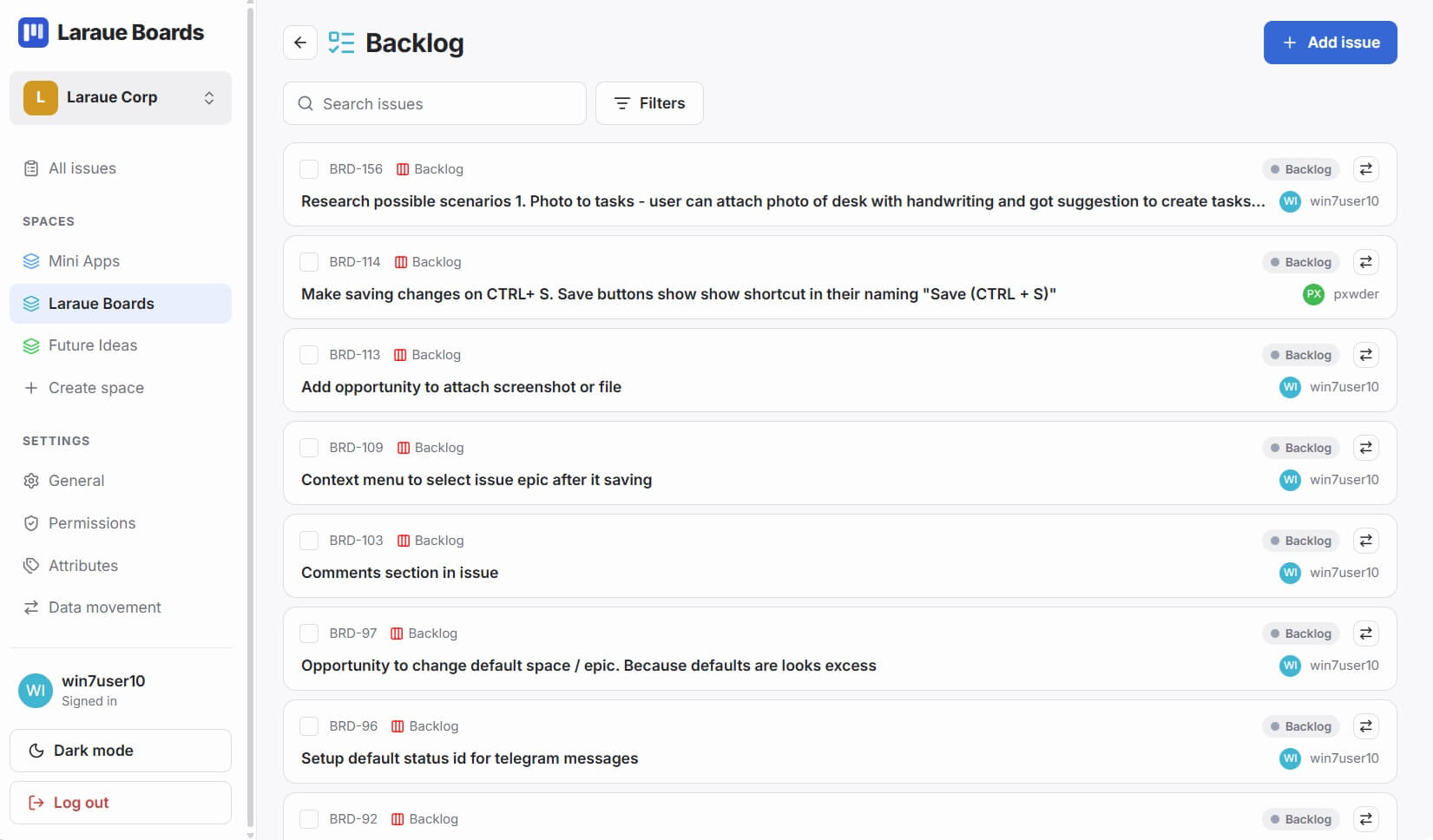
The Backlog is where issues live before they are assigned to a board. Every Telegram message you capture goes to the Backlog first. Your job is to triage β decide which board each issue belongs on and what its initial status should be.
What the Backlog shows
The Backlog view has two sections:
Board overview dashboard β always visible at the top when you have boards. Shows a card for each board with a segmented progress bar, issue counts, and a breakdown of To Do / In Progress / Done items. Tap any board card to navigate to it.
Unassigned issues list β below the dashboard, all issues that have not yet been placed on a board. Each shows the sender, source chat, message text, and any media thumbnails.
Searching the Backlog
Tap the search icon in the Backlog header. As you type, the list filters in real time across message content, sender name, and source chat. The match count appears below the header title. Press Escape or tap the icon again to clear.
Sorting the board overview
Three sort options appear above the board cards:
- Manual β the order you created the boards
- Name β alphabetical
- Recent β boards with the most recent activity first, useful when you have many boards and want to jump straight to active work
Active boards only β toggle this filter to hide boards where every issue is in the final (Done) column. Useful at end-of-sprint cleanup when you want to focus only on work still in progress.
Assigning an issue from the Backlog
Tap any issue card to open its detail. Tap Assign to board to open the assignment picker. Select a board and then a status column. The issue moves off the Backlog immediately and receives its board key.
The assignment picker remembers your last used space context so you do not have to navigate the full hierarchy each time.
Customizing the Backlog name
Tap the edit icon in the Backlog header to rename it and change its accent color. Some teams prefer to call it "Inbox", "Triage", or "Unassigned". The name is cosmetic β the behavior is the same.
Moving issues back to the Backlog
Open any issue detail from a board and tap β© Move to Backlog. The issue loses its status and column placement but keeps its issue key.