An organization is a shared workspace in Laraue Boards. When you work inside an organization, boards and spaces are visible to members according to the permissions they have been given.
Your personal work lives in its own organization too — it just has one member: you. Creating a team organization does not share or move anything from your personal one.
Choosing an organization
After logging in, you land on a screen listing every organization you belong to, including Personal. Tap one to open it, or tap + Create organization to start a new one.
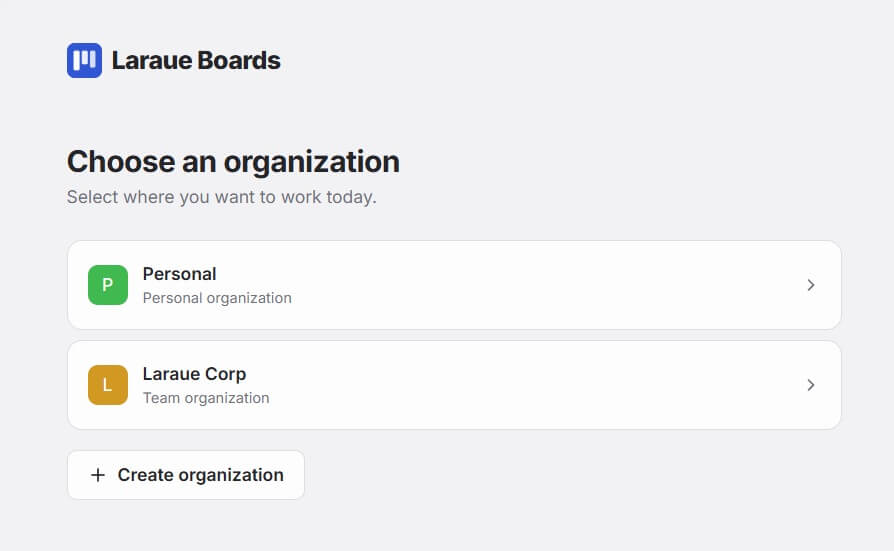
You can switch organizations at any time from the dropdown at the top of the sidebar, without logging out.
Creating an organization
Tap + Create organization and fill in:
- Name — the display name, e.g. "Acme Studio"
-
Slug — a URL-safe identifier, auto-suggested from the name, e.g.
acme-studio - Color — used in the sidebar and the organization switcher
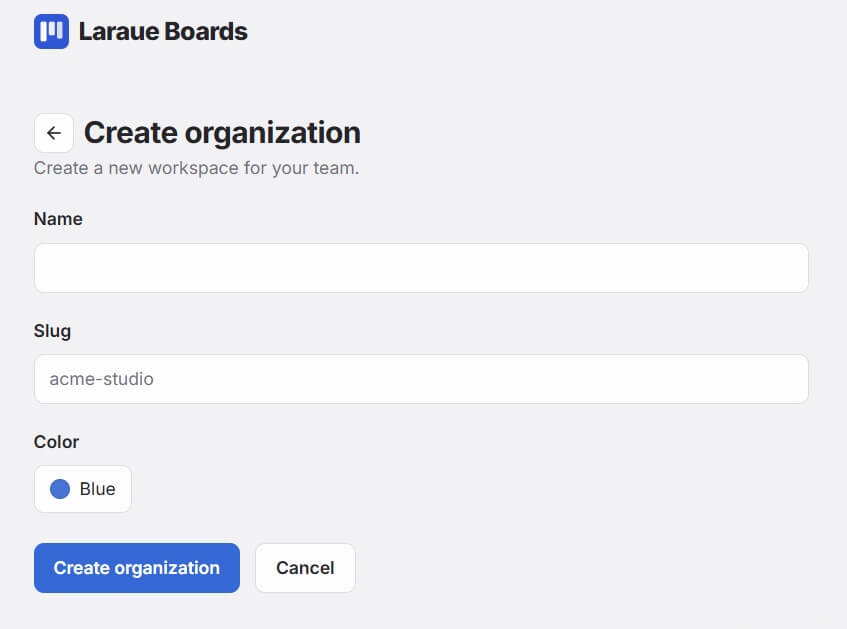
The slug you enter isn't used as-is: a random postfix is appended to it to form the organization's actual key, so laraue becomes something like laraue-HFP0. This is deliberate — it keeps organization keys from being guessable, which matters since the key shows up in URLs like the issue link.
You are automatically assigned as the Owner.
Inviting members and managing permissions
Open Settings → Permissions in the sidebar. This one page holds both the invite link and your member list.
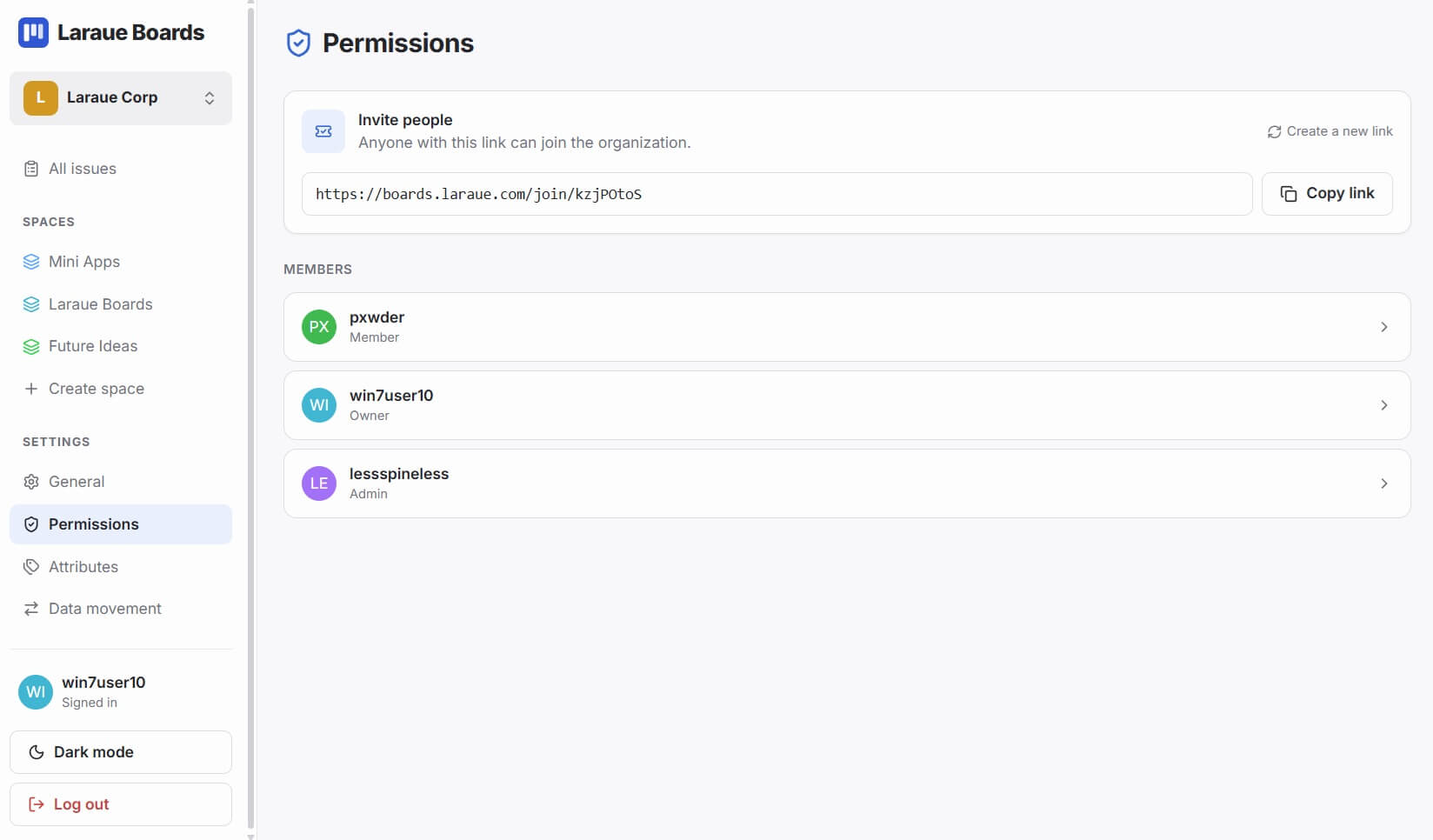
Invite people — copy the link shown at the top and send it to your teammate in Telegram. When they open it and accept, they join the organization. Create a new link revokes all pending invitations without removing existing members.
Members — every member is listed with a role label — Owner, Admin, or Member — rather than something you assign directly: any member holding at least one administrative permission shows up as Admin. Tap a member to open their permissions page.
A member with no permissions at all can't see anything in the organization — access is opt-in, not opt-out. There is no way to revoke a member's access yet; that's planned for a future version.
Configuring a member's permissions
Tapping a member opens a dedicated page for their access, with three sections.
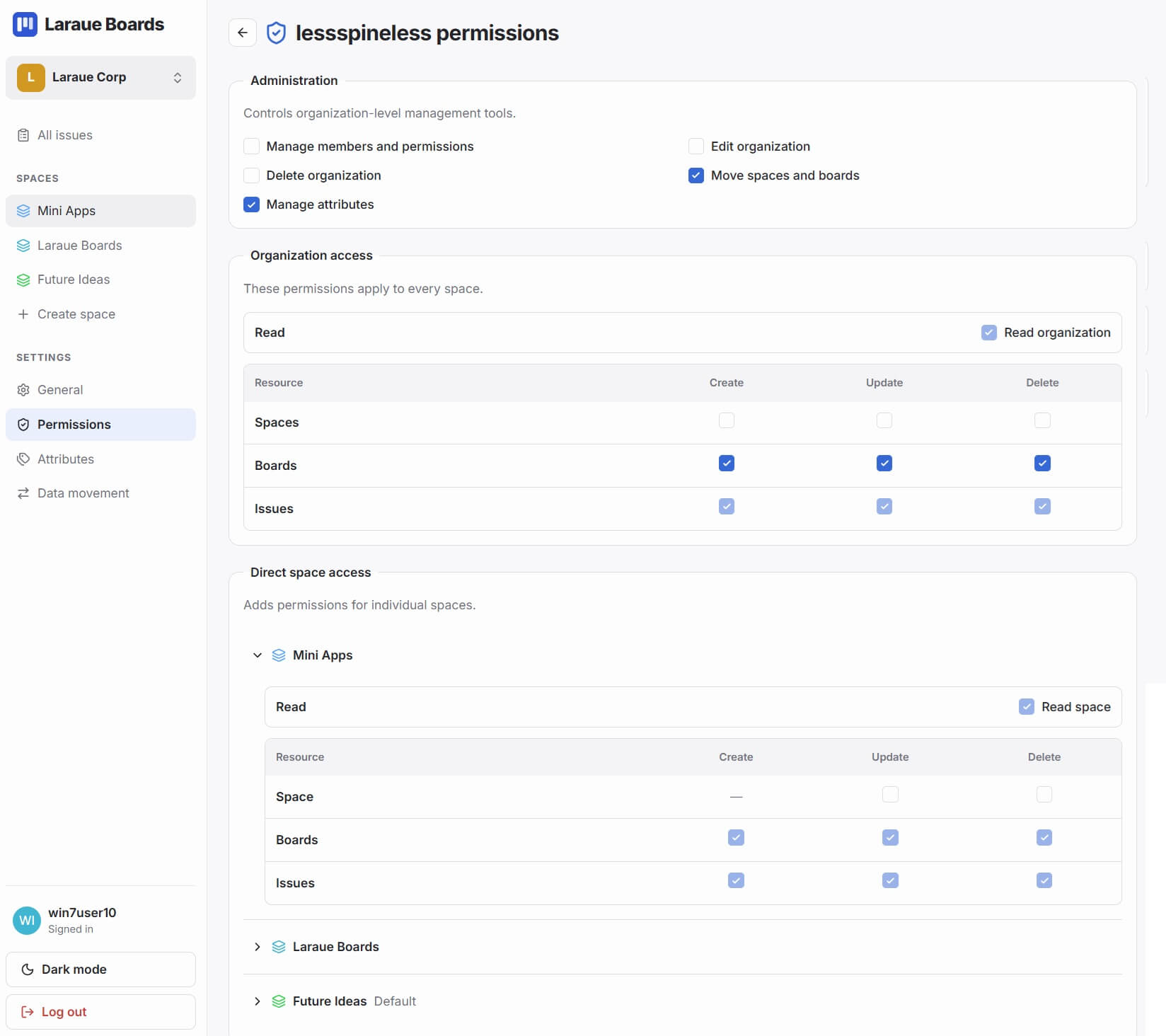
Administration controls organization-level management tools — checkboxes for things like managing members and permissions, editing or deleting the organization, moving spaces and boards, managing attributes, and linking Telegram chats. Checking any of these is what makes someone show up as an Admin in the member list.
Organization access applies across every space at once. A Read organization toggle controls whether the member can see everything, and below it a table lets you grant Create / Update / Delete separately for Spaces, Boards, and Issues.
Direct space access adds permissions for individual spaces on top of whatever organization access already grants. Expand a space to set a Read space toggle and the same Create / Update / Delete grid, scoped to just that space — useful when someone should only work inside one client's space, for example, without seeing the rest of the organization.
Editing or deleting an organization
Open Settings → General. From there you can rename the organization, change its slug or color, or delete it.
Changing the slug breaks any existing links built around the old one. Change it only when you're prepared for that.
Deleting an organization permanently removes everything in it — every space, board, and issue. This cannot be undone.
Switching between workspaces
Tap the organization name in the dropdown at the top of the sidebar. It shows the same list as the one you see after logging in — your Personal workspace and every organization you belong to — so you can jump between them without logging out.