A message sent to the @msgboard_bot bot initially lands in Default Space -> Backlog. Linking lets you change this behavior by choosing the board that messages from this chat will be sent to.
Linking works both in team and personal modes. Any chat can be linked — your own private 1:1 with the bot, a group, or a supergroup — with any organization you have permission for.
Linking a chat with /link
Send /link in the chat to start.
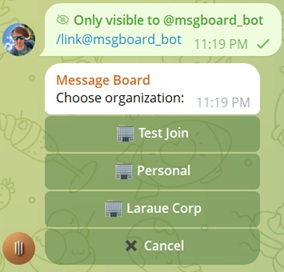
In a group or supergroup, only a Telegram chat admin can run /link (or /unlink) — anyone else gets a "You need to be an admin of this chat" message. Your private chat with the bot has no separate admin concept, so this check doesn't apply there.
The bot then walks you through several steps to create the link:
- Organization — only organizations where you hold the Link chats admin permission are offered. If none qualify, the bot tells you so and stops.
-
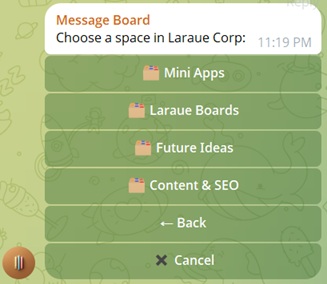
Space — any space you can read within that organization.
-
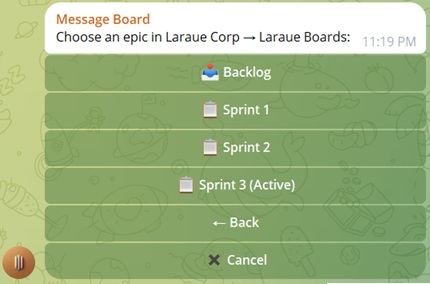
Epic — every epic in the space, or the backlog. Picking the backlog skips the status step.
- Status — every column in the epic you picked (skipped for the backlog).
-
Save mode — the last step, and it's worth its own page: see Auto vs. manual save mode.
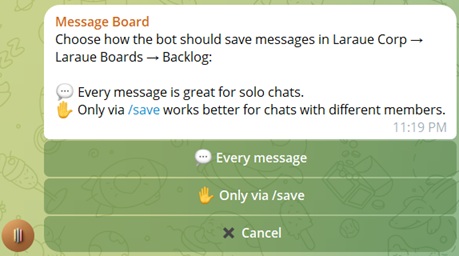
A Back button returns to the previous step, and Cancel aborts at any point.
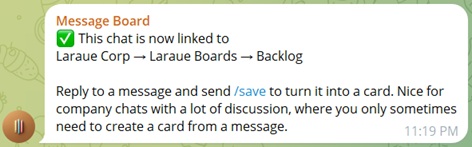
Once you confirm a save mode, the bot links the chat and shows the full destination as a breadcrumb — Organization → Space → Epic → Status — along with a one-line explanation of what the chosen save mode does.
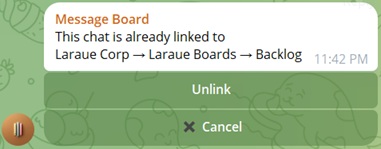
A chat can only have one active link at a time. Running /link again on an already-linked chat shows the current destination with an Unlink button instead of starting the picker over.
Unlinking
Send /unlink (same admin requirement as /link), or tap Unlink from the already-linked menu. Unlinking works as a soft delete.
Who can link a chat
Being able to link a chat is its own admin permission, separate from being able to save issues in it. Only organizations where you hold the Link chats administrative permission appear in the /link picker — see Permissions management for how to grant it to a teammate.
Related pages
- Auto vs. manual save mode — what happens to messages once a chat is linked
- Searching issues from any Telegram chat
- Permissions management