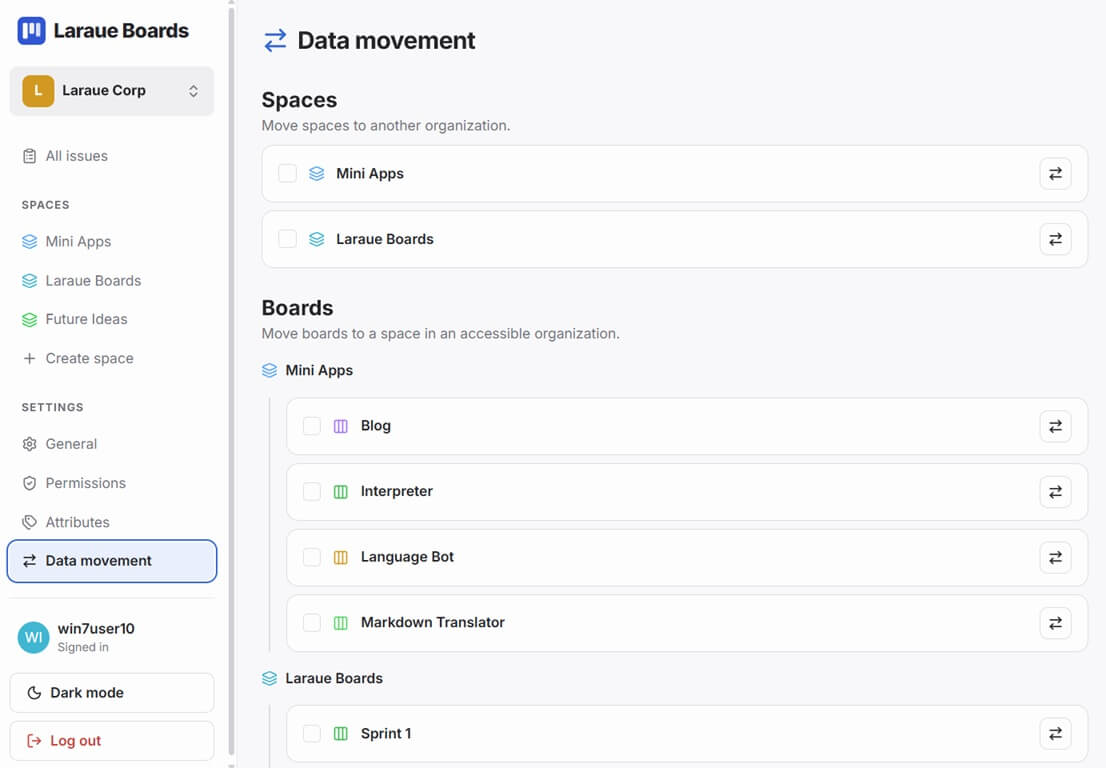
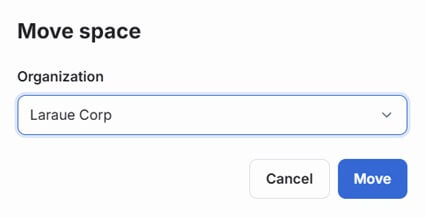
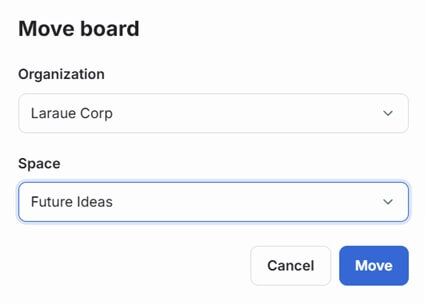
When you start using Laraue Boards on your own, everything lives in your personal workspace. Then your team grows, you create an organization, and suddenly you need to move months of work into the shared space. Mass Move handles this in a few taps.
What you can move
Mass Move supports four types of transfers:
| Operation | What moves |
|---|---|
| Move entire space | The space, all its boards, and all issues on those boards |
| Move epics from a space | All boards within a chosen space, with their issues |
| Move a single epic | One board and all issues on it |
| Move issues from an epic | Only the issues β the board stays where it is, issues are placed into the target organization's board |
The first three are straightforward transfers. The fourth β moving only issues β requires an extra step to map source statuses to target statuses, because the destination organization may have different column names.
How to open Mass Move
Open the Backlog view, tap the + button (bottom right corner) to open the FAB menu, and choose Mass move.
Step by step
Step 1 β Choose what to move
Select one of the four operations. Each shows a description of exactly what will be transferred.
Step 2 β Select the source
Depending on your choice in Step 1, you either pick a space (for the first two options) or an epic (for the last two). The list shows how many epics or issues each contains.
Step 3 β Select the destination
Choose where to move the content:
- Personal β your private workspace
- Any organization you belong to
The current selection is highlighted with a checkmark.
Step 4 β Map statuses (issues only)
This step only appears when you choose Move issues from an epic.
Each status column from the source epic is shown as a row. Next to each is a dropdown listing the available statuses in the destination organization. Select which target status each source status should map to.
For example, if your source epic has "Testing" as a status but the target organization only has "To Do", "In Progress", and "Done", you would map "Testing" β "In Progress" or whichever makes sense for your workflow.
Statuses you leave unmapped are automatically placed in the first available status in the destination.
Step 5 β Confirm
A summary shows:
- The operation being performed
- The source name
- The destination organization
- The full status mapping (if applicable)
An orange warning reminds you that this action cannot be undone. The Confirm Move button is colored orange to signal that this is a destructive operation.
What happens to permissions
When content is moved to an organization, it immediately becomes visible to organization members according to their permission settings. If a member has Read on Issues at the organization level, they will see the moved issues as soon as the move completes.
Content moved out of an organization (to Personal) becomes private immediately β organization members lose access.
Common scenarios
Starting personal, going to a team: You spent two months building your board structure in your personal workspace. You create an organization and invite your team. Use Move entire space to transfer everything at once.
Sharing a specific project: You have five spaces in your personal workspace but only want to share one client project with your team. Use Move entire space and select only that space.
Reorganizing between organizations: You belong to two organizations β one for development, one for client projects. An epic ended up in the wrong one. Use Move a single epic to correct it.
Migrating issues after a board restructure: Your organization restructured its boards and renamed all the status columns. Use Move issues from an epic with status mapping to migrate issues from an old board structure into the new one without losing their workflow state.
Limitations
- You can only move content to organizations you are a member of
- Moving content you don't own requires appropriate permissions β Update on the source Space or Epic, and Create on the destination
- Status mapping is only available for the "Move issues from an epic" operation. Moving a full epic or space preserves the source statuses as-is in the destination