Architecture First: Building a Jira Alternative in a Tiny Team, AI-Assisted — Part 6.
The previous article ended with the first version of the backend, running only on a local machine. In this one we deploy it to a real server.
The goal of this article is to deploy the bot on the cheapest infrastructure that can possibly handle the job: a small VPS, Docker Compose, self-hosted PostgreSQL with configured memory limits, and a GitHub CI pipeline that uploads the app's artifacts on every push to main.
Server: one VPS for the whole infrastructure
We are not building a huge corporate system and do not want to spend big money while the project earns nothing, so there will be no Kubernetes, no managed containers, and no cloud database — everything will run on one small VPS.
The starting point was a server that already existed: this blog runs on a VPS with 1 GB of RAM, and the provider allowed upgrading the memory to 3 GB in a few clicks. The plan: roughly 1 GB for the applications, 1 GB for PostgreSQL, and the rest for the operating system, the blog, and the demo apps. One server for a few dollars a month is able to host that whole pack of services.
Self-hosted PostgreSQL instead of a managed database
A managed database has a set of advantages: automatic backups, failover, and point-in-time recovery. These are real benefits, but paying for them makes sense when there is something to protect. Self-hosted PostgreSQL on the same VPS is effectively free — the server is already paid for, there is no load yet that it could not handle, and the server's backups give some guarantee of data safety. When the cost of losing data grows, moving to a managed database may become a reasonable step.
The same logic will later apply to files: media will be stored on the VPS's file system rather than in object storage like S3, to avoid spending on infrastructure.
GitHub CI pipeline
Uploading the artifacts to the server happens on every push to the main branch, using GitHub Actions. The workflow lives in .github/workflows/ and is called dotnet.yml:
name: .NET
on:
  push:
    branches: [ "main" ]
  pull_request:
    branches: [ "main" ]
jobs:
  build:
    runs-on: ubuntu-latest
    steps:
    - uses: actions/checkout@v4
    - name: Setup .NET
      uses: actions/setup-dotnet@v4
      with:
        dotnet-version: 10.x.x
    - name: Restore dependencies
      run: dotnet restore
    - name: Build
      run: dotnet build --no-restore -c Release
    - name: Upload Telegram Host
      if: github.ref == 'refs/heads/main'
      uses: marcodallasanta/[email protected]
      with:
       host: ${{ secrets.SSH_HOST }}
       port: ${{ secrets.SSH_PORT }}
       user: ${{ secrets.SSH_USER }}
       password: ${{ secrets.SSH_PASSWORD }}
       local: src/Laraue.Apps.Boards.TelegramHost/bin/Release/net10.0/*
       remote: "/home/laraue/boards-telegram-host"
       post_upload: echo "Uploaded successfully"
The pipeline starts working as soon as it is pushed to the repository. Its job is, on a push to main, to build the project using .NET 10 and upload the resulting artifact to /home/laraue/boards-telegram-host over SSH. The connection details are GitHub secrets — set in the repository's Settings → Secrets and variables → Actions on GitHub itself, and never appearing in the codebase.
Dockerfile
The bot's artifacts are packed into a Docker container with a small Dockerfile named BoardsTelegramHostDockerfile, stored on the server:
FROM mcr.microsoft.com/dotnet/aspnet:10.0
RUN apt-get update && apt-get install -y --no-install-recommends curl \
    && rm -rf /var/lib/apt/lists/*
COPY boards-telegram-host app
WORKDIR app
ENTRYPOINT ["dotnet", "Laraue.Apps.Boards.TelegramHost.dll"]
The container gets the ready-made files produced by the CI build step copied into it. The container only needs the .NET runtime to run the host, not the full .NET SDK, so its size stays small.
Why curl has to be installed for the healthcheck
The only non-obvious line in the Dockerfile is apt-get install curl. The .NET runtime images are minimal: starting with .NET 8 they ship with neither curl nor wget. That does not bother the application, but it breaks the container healthcheck, which needs to make an HTTP request to the running app's /_health endpoint.
Docker Compose: the bot and the database in one file
Compose ties the two containers — the bot host and PostgreSQL — into one deployment:
version: '3.4'
networks:
  dockerapi-dev:
    driver: bridge
services:
  boardstelegramhost:
    build:
      context: .
      dockerfile: "BoardsTelegramHostDockerfile"
    expose:
      - "5006"
    ports:
      - "8086:5006"
    restart: always
    environment:
      ASPNETCORE_ENVIRONMENT: "Production"
      Kestrel__EndPoints__Http__Url: "http://+:5006"
      Telegram__Token: "TokenHere"
      ConnectionStrings__Postgre: "User ID=PostgresUser;Password=PostgresPass;Host=postgres;Port=5432;Database=laraue_messages_board;Command Timeout=0;"
      Logging__LogLevel__Default: "Warning"
    depends_on:
      postgres:
        condition: service_healthy
    networks:
      - dockerapi-dev
    deploy:
      resources:
        limits:
          memory: 256M
    healthcheck:
      test: ["CMD-SHELL", "curl -fsS http://localhost:5006/_health || exit 1"]
      interval: 5s
      timeout: 3s
      retries: 10
      start_period: 10s

  postgres:
    image: postgres:18-alpine
    container_name: postgres_db
    restart: always
    command: postgres -c config_file=/etc/postgresql/postgresql.conf
    environment:
      PGDATA: /var/lib/postgresql/data
      POSTGRES_USER: PostgresUser
      POSTGRES_PASSWORD: PostgresPass
    volumes:
      - /home/laraue/postgres_data:/var/lib/postgresql/data
      - ./postgres.conf:/etc/postgresql/postgresql.conf
      - ./pg_hba.conf:/etc/postgresql/pg_hba.conf
    networks:
      - dockerapi-dev
    expose:
      - "5432"
    ports:
      - "5432:5432"
    healthcheck:
      test: ["CMD-SHELL", "pg_isready -U PostgresUser -d laraue_messages_board"]
      interval: 10s
      timeout: 5s
      retries: 5
      start_period: 10s
    deploy:
      resources:
        limits:
          memory: 1024M
A few comments on the decisions made here.
Limits are set on memory only. Every service has a memory cap, but no CPU limit. The VPS has a single core, and manually set CPU limits in that situation mostly get in the way: services start much slower than they could, and the database works slower. Memory limits, on the other hand, are needed and act as good insurance: they keep one container from taking all the memory and provoking an OutOfMemoryException in a neighbouring service. So memory is limited explicitly, and the CPU is managed by the standard OS scheduler.
The healthcheck uses the endpoint from the previous article. The /_health endpoint added to the host is polled with curl. The healthcheck does not restart the container by itself: it only marks it unhealthy, which shows in docker ps, while restart: always brings the container back if its process dies. Postgres has its own check through pg_isready. The bot waits for the database through depends_on with condition: service_healthy, so it does not start before the DB is ready to accept connections.
Postgres keeps its data through a bind mount. The VPS directory /home/laraue/postgres_data is mapped into the container's /var/lib/postgresql/data directory, where Postgres saves its data. The data physically sits on the VPS disk and is visible in its file system.
The secrets in the file are not real. The real values are set on the server, in this same file.
Tuning Postgres for 1 GB of memory
A self-hosted database means, first of all, that you have to configure it yourself. The default configuration lets Postgres start on servers with a minimal amount of RAM, but on more capable servers it becomes suboptimal. There are dedicated services that help pick optimal Postgres settings for a specific server configuration. We settled on this variant of postgresql.conf:
shared_buffers = 256MB
effective_cache_size = 768MB
work_mem = 16MB
maintenance_work_mem = 64MB
max_connections = 75
wal_buffers = 16MB
min_wal_size = 1GB
max_wal_size = 2GB
checkpoint_completion_target = 0.9
random_page_cost = 1.1
effective_io_concurrency = 200
listen_addresses = '*'
hba_file = '/etc/postgresql/pg_hba.conf'
The two main parameters are shared_buffers (256 MB, memory for the data page cache) and effective_cache_size (768 MB, a hint to the planner about the available disk cache). random_page_cost = 1.1 tells the planner that random reads are cheap — the recommended value for servers with SSDs. This is the standard pass of tuning Postgres to the RAM actually available — exactly what a managed database does for you. The configuration file sits next to the docker-compose file and is passed into the container like this: ./postgres.conf:/etc/postgresql/postgresql.conf.
Mounting the file is not enough. The official image starts Postgres with the config from the data directory and does not read /etc/postgresql/ on its own, so the command line in the compose file above points Postgres at our file. The last two lines of the config do the rest: listen_addresses = '*' lets the bot reach the database from another container (with a custom config the default is localhost only), and hba_file makes Postgres use our pg_hba.conf instead of the one in the data directory. We mounted both files at first and did not notice they were ignored. To check that the settings are applied, run:
docker exec postgres_db psql -U PostgresUser -c "show config_file; show hba_file; show shared_buffers;"The expected answer is the two files from /etc/postgresql/ and 256MB. If you see paths in /var/lib/postgresql/data and 128MB, the defaults are still in use.
Restricting database access with pg_hba.conf
Restricting public access to the database is good practice. Access to Postgres is restricted through pg_hba.conf: only one external IP is allowed to connect, everything else is rejected:
# TYPE  DATABASE  USER  ADDRESS         METHOD
local   all       all                   trust
host    all       all   127.0.0.1/32    md5
host    all       all   ServerIp/32     md5
host    all       all   172.16.0.0/12   md5
host    all       all   0.0.0.0/0       reject
We trust local connections, the VPN address and the Docker networks (172.16.0.0/12 is the range Docker takes bridge networks from, and the bot connects from there); all other connections are rejected. The database port is published on the host, so this file is what keeps the internet out. Postgres stops at the first matching rule, so the final reject line is a safety net for clarity.
ServerIp here is the address of a self-hosted VPN running on the same server. We connect to it from the local machine (Amnezia with AmneziaWG), and while the VPN is active, the local computer looks like the trusted IP to Postgres — the database can be opened directly from a tool like DataGrip.
Connecting to Telegram: long polling
The bot talks to Telegram through long polling — it requests the updates itself rather than receiving them on a public webhook. This simplifies the deployment: setting up a public HTTPS address for the server is not needed yet.
File structure on the server
Everything related to our projects lives on the VPS in the /home/laraue/ directory:
- this is where the uploaded artifact folders appear — for example
boards-telegram-host, where CI puts the built bot (aboards-webapi-hostfor the web API from the upcoming articles will appear next to it); - the Dockerfiles for each application;
- the config files —
postgres.conf,pg_hba.conf; - the
docker-compose.ymldescribing all the services; - the data directories for the bind mounts — for now only
postgres_data.
Updating the services after the artifacts are uploaded is done by hand. We connect to the VPS over SSH and run two commands:
docker-compose build
docker-compose up -d
build builds the updated services, up -d recreates the containers that changed. For a situation where one person always does the deployment, this is quite simple and predictable.
The deployment changed later. This article describes the state at the time of this part. Now GitHub Actions does everything without manual commands: each service is uploaded by its own job, and after the upload only that service is restarted, with
docker compose build <service>anddocker compose up -d --force-recreate <service>over SSH.
Conclusions
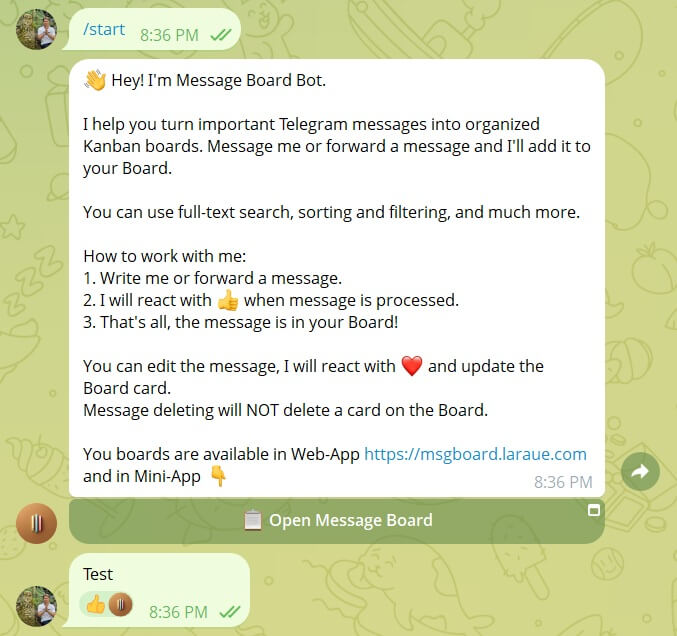
The bot is deployed on a cheap VPS: it runs in Docker, next to it runs self-hosted PostgreSQL, configured for 1 GB of RAM and protected from public access. The artifacts are shipped through GitHub Actions on a push to main. The bot is up and working with Telegram through long polling, and this is what it looks like:
What comes next
The bot saves tasks to the database, but managing them is not available yet. The next article will be about the frontend: how to make it open inside Telegram as a Mini App. We will tell about configuring HTTPS in nginx with a free Let's Encrypt certificate, and deploy the frontend.